Buy Dialpad Accounts
Are you looking for Buy Dialpad Accounts for your business? Then, you have hit the right place. We can provide you fully verified accounts at a very reasonable price. If you are interested, just knock us contact ⏩

Buy Dialpad Accounts
Are you looking for a reliable way to manage your business communication? Dialpad accounts might be exactly what you need. Whether you’re a small business owner or part of a large team, having the right tools can make your work smoother and more efficient. You’ll discover how Dialpad accounts can simplify your calls, messages, and meetings—all from one easy platform.
Keep reading to see how you can take control of your communication and boost your productivity starting today.
Dialpad Account Basics
Dialpad accounts are the entry point to a smooth communication experience. They help you connect easily with teams and customers. Understanding the basics of Dialpad accounts makes it simple to get started. This section explains key points about these accounts.
What Is A Dialpad Account?
A Dialpad account is your personal or business profile on the platform. It stores your contact info and settings. This account lets you send messages, make calls, and join meetings. It works on computers and mobile devices.
How To Create A Dialpad Account
Creating an account is quick and free. You need an email address to sign up. After that, follow simple steps to verify your email. Then, set up your profile with your name and phone number.
Dialpad Account Features
Dialpad accounts offer many tools. These include voice calls, video meetings, and messaging. You can also see your call history and voicemail. The account syncs across all your devices for easy access.
Managing Your Dialpad Account
You can change your settings anytime. Update your profile, notification preferences, and privacy options. Manage connected devices and linked phone numbers easily. The dashboard keeps everything organized and simple.
Setting Up Your Account
Setting up your Dialpad account is the first step to using this powerful communication tool. The process is simple and quick. Follow these steps to create and customize your account for the best experience.
Creating Your Dialpad Account
Start by visiting the Dialpad website. Click the sign-up button. Enter your email address and choose a strong password. Verify your email to activate the account. This ensures your account is secure and ready to use.
Choosing Your Plan
Select a plan that fits your needs. Dialpad offers options for individuals and businesses. Compare features and prices carefully. Pick the one that matches your communication style and budget. This step helps avoid paying for unnecessary features.
Setting Up Your Profile
Fill in your personal details. Add your name, job title, and phone number. Upload a clear profile picture. This information helps colleagues and clients recognize you. A complete profile builds trust and professionalism.
Configuring Call Settings
Adjust call preferences to suit your work style. Set call forwarding, voicemail, and do not disturb options. Customize ring tones and notifications. These settings improve your call handling and response time.
Integrating With Other Tools
Connect Dialpad with apps you use daily. Link your email, calendar, and CRM software. Integration saves time and keeps your work organized. It creates a seamless communication workflow.
Navigating The Dashboard
The Dialpad dashboard is your main control center. It shows important information at a glance. You can manage calls, messages, and contacts all from one place.
The dashboard is easy to use. It helps you stay organized and work faster. Knowing how to navigate it saves time and reduces mistakes.
Dashboard Layout Overview
The dashboard has clear sections. The left side shows your menu with options like Calls, Messages, and Contacts. The main area displays detailed info based on your selection. The top bar has search and settings tools. This layout keeps everything within reach.
Accessing Call History
Call History is simple to find on the menu. It lists all incoming, outgoing, and missed calls. You can click on any call to see details. This helps track conversations and return important calls quickly.
Managing Contacts Efficiently
Contacts are easy to access from the dashboard. You can add, edit, or delete contacts in seconds. Searching for a contact uses the search bar. Well-managed contacts keep communication smooth and fast.
Customizing Dashboard Settings
Dashboard settings let you adjust your view. Change themes, notifications, and language preferences. Personalizing these settings makes your experience more comfortable. Small tweaks improve daily usage significantly.
Managing User Profiles
Managing user profiles in Dialpad is simple and effective. It helps keep your team organized and connected. Each user has their own settings and preferences. This makes communication smoother and more personal.
With clear user profiles, admins can control access and roles easily. Users can update their information anytime. This keeps data accurate and current.
Editing User Information
Change user details like name, email, and phone number. Keep profiles up to date for better communication. Simple steps make editing fast and easy. No special skills needed to update profiles.
Assigning Roles And Permissions
Set roles based on job needs. Control who can access what features. Manage permissions to protect sensitive information. Roles help keep the system secure and organized.
Monitoring User Activity
Track how users interact with Dialpad. See call logs, messages, and usage patterns. Identify areas for improvement or training. Monitoring supports better team management and support.
Adjusting Account Settings
Adjusting your Dialpad account settings helps you control your communication experience. It allows you to change preferences that fit your needs. Managing these settings is simple and quick.
Small changes can improve how you use Dialpad every day. From notifications to call handling, settings shape your workflow. Taking a few moments to adjust them pays off.
Account Profile And Information
Start by updating your profile details. This includes your name, email, and phone number. Keeping this information current ensures smooth communication with colleagues and clients.
You can also add a profile picture. It makes your account more personal and easy to recognize.
Notification Preferences
Control how and when you receive alerts. Choose email, mobile, or desktop notifications. Adjust sound and vibration settings for calls and messages.
These choices help you stay informed without distractions. Tailor alerts to match your work style.
Call Handling Settings
Set rules for incoming calls. Decide whether to forward calls, send to voicemail, or answer automatically. Manage call screening and blocking options.
This control improves your availability and response times. It helps keep your calls organized and efficient.
Security And Privacy Options
Review your password and login settings regularly. Enable two-factor authentication for extra security. Manage permissions for apps linked to your account.
Protecting your account safeguards your data and conversations. Stay aware of privacy controls to keep your information safe.
Password And Security Options
Dialpad accounts come with strong password and security options to protect your data. These tools help keep your information safe from unauthorized access. They offer simple ways to manage your password and add extra layers of security.
Password Requirements
Dialpad requires passwords to be strong and secure. Passwords must include letters, numbers, and symbols. This makes it harder for hackers to guess. Users should avoid common words or simple patterns. Changing passwords regularly improves account safety.
Two-factor authentication (2FA) adds a second step to login. After entering the password, users must confirm identity through a code. The code is sent to a phone or email. This extra step blocks unauthorized access even if passwords leak.
Password Reset Options
Dialpad offers easy ways to reset forgotten passwords. Users receive a reset link via email. This link guides them to create a new password safely. Quick password recovery keeps accounts secure and reduces downtime.
Dialpad tracks login activity for each account. Users can see recent logins and device details. Suspicious activity alerts help detect possible breaches early. Monitoring enhances security by keeping users informed.
Two-factor Authentication
Two-factor authentication adds a strong layer of security to Dialpad accounts. It helps keep your data safe by requiring two steps to log in. This method protects your account even if someone knows your password.
Using two-factor authentication reduces the risk of unauthorized access. It is easy to set up and use on Dialpad. This feature helps maintain privacy and trust in your communications.
What Is Two-factor Authentication?
Two-factor authentication asks for two pieces of information to log in. First, you enter your password. Then, you provide a second code from your phone or email. This code changes every time you log in.
How To Enable Two-factor Authentication In Dialpad
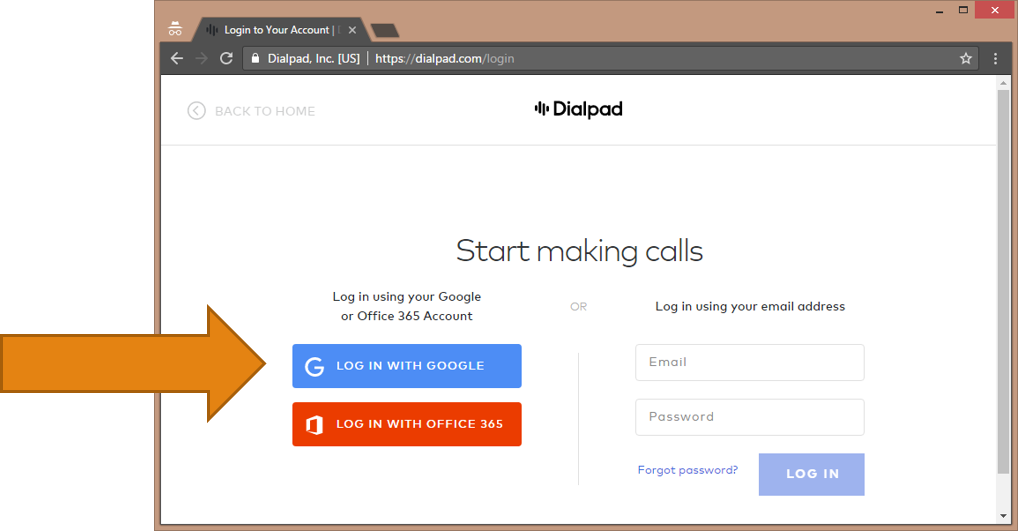
Sign in to your Dialpad account. Go to your account settings and find the security section. Click on two-factor authentication and follow the steps. You will need to connect your phone or email for the code.
Benefits Of Two-factor Authentication
It stops hackers from accessing your account with just a password. It protects your personal and business information. It gives you peace of mind that your account is secure.
Role-based Access Control
Role-Based Access Control (RBAC) is essential for managing Dialpad accounts securely. It allows account owners to assign specific roles to users. Each role has different permissions. This limits access to sensitive information and features. RBAC helps keep your communication safe and organized.
By using RBAC, organizations can control who does what. It reduces the risk of mistakes or misuse. Users only see what they need for their job. This creates a clear structure within the Dialpad system.
What Is Role-based Access Control?
Role-Based Access Control means assigning roles with set permissions. Each user gets a role based on their job. The role defines what they can access and change. This method simplifies managing multiple users in Dialpad.
Benefits Of Role-based Access Control In Dialpad
RBAC improves security by limiting access to important data. It helps avoid accidental changes to settings. Teams work more efficiently with clear roles. It also makes tracking actions easier for admins.
How To Set Up Roles In Dialpad
Admins can create and assign roles in the Dialpad dashboard. Choose from preset roles or customize them. Assign roles based on tasks and responsibilities. This setup ensures the right access for every user.
Integrating With Other Apps
Dialpad accounts work well with many other apps. This helps you keep everything connected. You can use the tools you already like. This saves time and makes work easier.
Integration means linking Dialpad with apps you use daily. It helps data flow smoothly between platforms. You avoid switching apps often. This boosts your team’s efficiency and helps you focus.
CRM Integration
Dialpad connects with popular CRM systems. It pulls up customer details during calls. This helps you talk with the right information. No need to search for client data. It keeps customer records up to date.
Calendar Sync
Sync your calendar with Dialpad. It shows your meetings and call times. Dialpad can remind you of upcoming calls. You avoid missing important appointments. This keeps your schedule organized and clear.
Team Collaboration Tools
Dialpad works with chat and project apps. Your team can share messages and files fast. It keeps conversations in one place. You track projects and calls easily. This helps your team stay connected and aligned.

Monitoring Account Activity
Monitoring account activity in Dialpad helps keep your communication safe. It lets you see who uses the account and what actions they take. This can stop unauthorized use and protect your data.
Regular checks on account activity can find unusual behavior early. This helps solve problems fast and keeps your business running smoothly. Dialpad offers tools that make tracking easy and clear.
Viewing Login History
Dialpad shows detailed login records for each user. You can see times, dates, and devices used. This helps spot any strange or unexpected logins quickly.
Tracking Call And Message Logs
Every call and message is recorded in the account. You can review these logs to check usage and find any odd patterns. This information supports security and compliance efforts.
Setting Up Activity Alerts
Dialpad allows alerts for certain account actions. You get notified about key events like new device sign-ins. This keeps you informed and ready to act on risks.
Managing User Permissions
Control who can access specific features in Dialpad. Limiting permissions reduces chances of misuse. Monitoring changes in permissions adds another layer of security.
Handling Billing And Subscriptions
Handling billing and subscriptions for Dialpad accounts is simple and clear. Managing payments and plans helps avoid interruptions. Keeping track of billing details ensures smooth service.
Users can update payment methods anytime. Subscriptions can be upgraded or canceled as needed. Clear invoices help understand charges easily.
Viewing And Managing Billing Information
Access billing details through the Dialpad account dashboard. Check past invoices and payment history quickly. Update credit card or payment options with a few clicks.
Changing Your Subscription Plan
Select a new plan based on your current needs. Adjust the number of users or features easily. Changes take effect in the next billing cycle.
Handling Billing Issues And Support
Contact Dialpad support for billing questions or errors. Get help with payment failures or subscription updates. Support teams respond promptly to resolve problems.
Troubleshooting Common Issues
Dialpad accounts sometimes face issues that slow down work. Troubleshooting these problems helps keep communication smooth. Many common issues have simple fixes. Understanding these can save time and avoid frustration.
Below are some frequent problems and how to address them quickly. Follow these steps for a better Dialpad experience.
Logging In Problems
Check your username and password carefully. Make sure the Caps Lock key is off. Clear your browser cache and cookies if login fails. Try a different browser or device to isolate the issue. Reset your password using the ‘Forgot Password’ option if needed.
Call Quality Issues
Poor call quality often links to internet problems. Connect to a stable Wi-Fi or use a wired connection. Close other apps that use bandwidth during calls. Restart your device to clear any temporary glitches. Update Dialpad to the latest version for optimal performance.
Account Settings Not Saving
Ensure you click ‘Save’ after changing settings. Clear browser cache and try again if changes don’t stick. Use a supported browser like Chrome or Firefox. Disable browser extensions that might block scripts. Contact support if the problem continues.
Unable To Send Or Receive Messages
Verify your internet connection is active. Refresh the app or browser tab. Check if you are logged in to the correct account. Clear the app cache or reinstall the app if needed. Confirm no service outages with Dialpad status pages.
Best Practices For Account Security
Keeping your Dialpad account safe is important. Strong security stops hackers and protects your data. Simple steps can make your account much safer. Follow these best practices to guard your Dialpad account.
Use Strong, Unique Passwords
Create passwords with letters, numbers, and symbols. Avoid common words or easy patterns. Use a different password for Dialpad than other sites. Change passwords regularly to keep accounts secure.
Enable Two-factor Authentication (2fa)
Turn on 2FA for an extra security layer. It asks for a code from your phone after your password. This makes it harder for others to access your account. Always use 2FA when available.
Monitor Account Activity
Check your Dialpad account for unusual logins or changes. Set alerts for suspicious activity. Report any strange behavior to your admin or support team. Early detection helps stop problems fast.
Limit Account Access
Give account access only to people who need it. Use roles and permissions to control what others can do. Remove access when it is no longer needed. Keep control tight to reduce risks.
Automating Account Management
Managing Dialpad accounts manually can take much time and cause errors. Automating account management simplifies daily tasks. It saves effort and reduces mistakes. Automation helps keep accounts organized and up to date.
Using automation tools for Dialpad accounts allows smooth user management. It handles new user setup, role assignments, and permissions without manual input. This leads to faster onboarding and fewer issues.
Automated User Provisioning
Automation creates new accounts instantly when needed. It applies the right settings and permissions automatically. This avoids delays and ensures users can start working quickly.
Streamlined Role And Permission Updates
Changes to roles and permissions happen without manual work. Automation tracks changes and updates accounts accordingly. This keeps access secure and aligned with company policies.
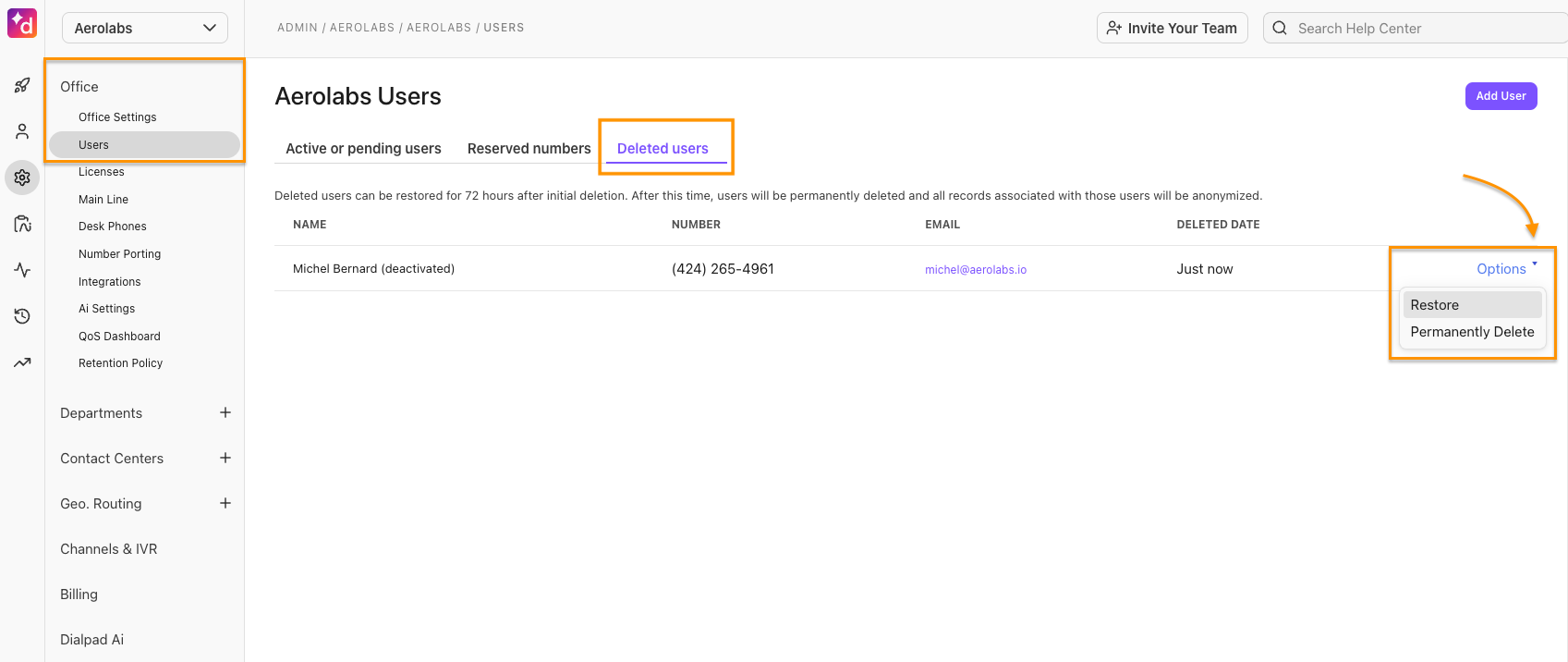
Effortless Account Deactivation
Automation removes access for users who leave or change roles. This stops unauthorized use and protects sensitive data. The process is fast and reliable.
Real-time Account Monitoring
Automated systems watch account activity continuously. They flag unusual actions and notify administrators right away. This improves security and helps prevent breaches.
Data Backup And Recovery
Data backup and recovery are vital for protecting your Dialpad accounts. They ensure your information stays safe and accessible. Losing important data can cause delays and harm your business. Having a solid plan keeps your communication smooth and reliable.
How Dialpad Backs Up Data
Dialpad automatically saves your data on secure servers. This process happens regularly without interrupting your work. The backups include messages, call logs, and settings. This way, your account information is always current and safe.
The Importance Of Recovery Options
Recovery options help restore your data quickly if lost. Dialpad offers easy ways to recover deleted messages or calls. You can access previous versions of your data fast. This reduces downtime and keeps your team connected.
Protecting Your Data With Encryption
Dialpad uses strong encryption to protect your backups. This means your data is scrambled and unreadable to outsiders. Encryption keeps hackers from accessing your sensitive information. Your communication stays private and secure.
Tips For Managing Your Backup
Check your backup settings often to ensure they work well. Keep your account details updated to avoid recovery issues. Regularly review your data to spot any missing information. These steps help maintain a safe and reliable backup system.
Upgrading And Scaling Accounts
Managing Dialpad accounts involves more than just setup. Upgrading and scaling accounts help businesses grow smoothly. As needs change, account features and capacities must adapt. This keeps communication efficient and reliable at all times.
Upgrading lets users access better tools and more options. Scaling supports adding new users or expanding services. Both steps ensure the platform fits the current business size and goals.
Upgrading Dialpad Plans For Better Features
Dialpad offers different plans to meet various needs. Upgrading a plan unlocks advanced features like call recording and analytics. These tools improve team performance and customer service. The process is simple and quick, with no downtime. Businesses can choose the right level of service without hassle.
Adding Users And Managing Team Growth
Scaling Dialpad accounts means adding more users easily. New team members get their own accounts and phone numbers. Admins can assign roles and permissions to control access. This helps keep communication organized and secure. The system supports growth without losing efficiency.
Customizing Services As Business Needs Change
Businesses can customize Dialpad services during scaling. They may add integrations with other tools or increase call capacity. This flexibility fits changing workflows and customer demands. Custom options ensure the account matches unique business needs. Adjustments are seamless and support long-term success.
Conclusion
Dialpad accounts offer a simple way to manage your communication tools. They keep your business connected and organized. You can customize settings to fit your needs. Managing calls, messages, and contacts becomes easy and quick. This helps save time and reduces confusion.
Choosing the right account type matters for your goals. Explore the features to find what works best. Stay connected with your team and customers smoothly. Dialpad accounts support clear and efficient communication every day.
1 review for Buy Dialpad Accounts
Add a review

Related Products

Buy Twilio Accounts


Michael Rice –
good